Quick answer
Use the Book button in the top bar to open the booking sheet, choose For, set the dates and send it. As an admin you can book for anyone, and the person is notified.
Find it under
Open the Add leave form
Click the + (Book time off) button in the top bar. Choose Who for and the leave Type.
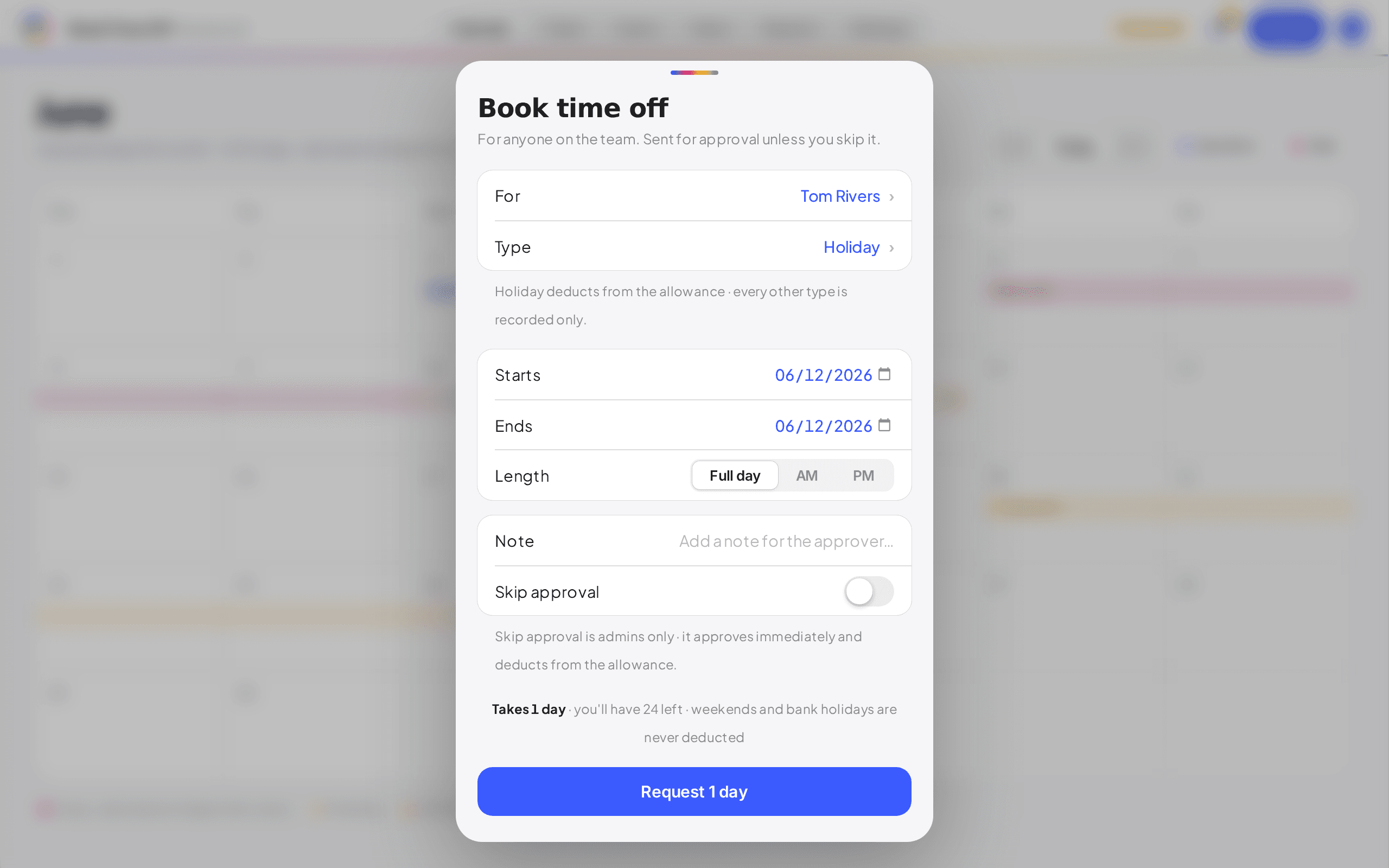
Set the dates and send
Set Starts and Ends, add an optional note, and tap the Request button. Turn on Skip approval first if you want it approved straight away; the audit log records it as added directly as approved by you, so it is never mistaken for a manager’s approval. Leave Skip approval off and the request goes to the person’s approver as normal. Weekends and non-working days are not deducted.
Half days
For a single working day the form offers Full day, Morning ½ or Afternoon ½. For a longer range you can mark the first or last day as a half day.
Adding leave that already happened?
Pick the past dates and turn on Skip approval. See Enter past or historic leave.