Quick answer
There is no edit-dates screen. To change a booking, cancel it (which refunds the days) and book the new dates. You can cancel from the Inbox’s Approved tab, the requests list, or by clicking the day on the calendar.
Find it under
Find the booking
Open the Inbox and choose the Approved tab, or open the person’s requests. Each booking has a Delete button.
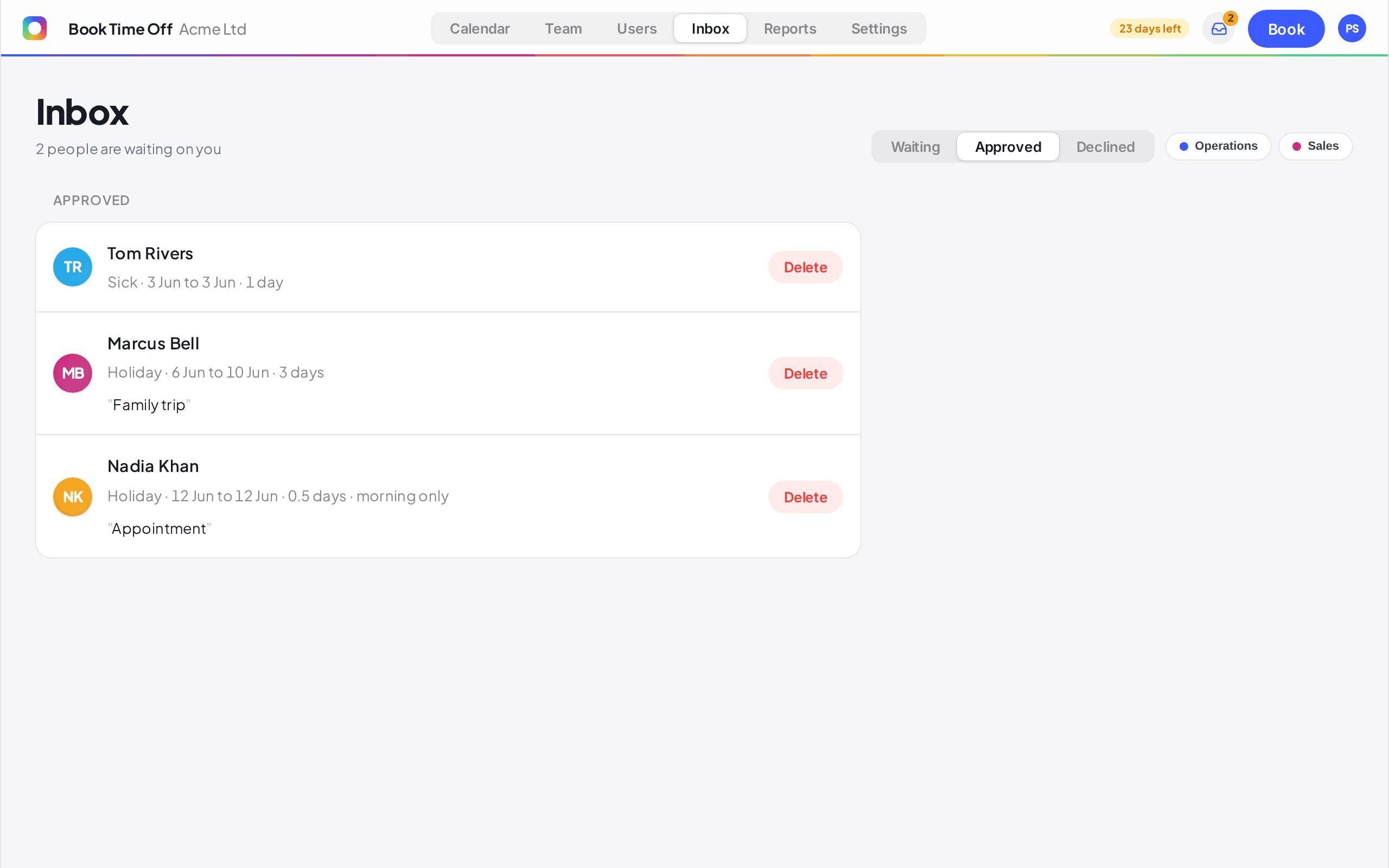
Cancel, then rebook if needed
Choose Delete to cancel. Cancelling approved leave refunds the days to the allowance, and the person’s approver gets an email to say so. To change the dates, cancel and then make a fresh booking for the right dates.
No edit screen, so cancel and rebook
Book Time Off does not have an edit-dates form. Moving a booking means cancelling and rebooking. To shorten a multi-day booking, click the day on the calendar and remove just that day.
Cancelled leave stays on the record
Cancelling takes the booking off the calendar, not off the record. The audit log keeps the original request, who approved it, and who cancelled it and when. Admins can download it from .